Docs
Docs and FAQ
The short guide to Tattle, and answers to the questions people ask first.
At a glance
- What it is
- Tattle for Mac, by Polytopic Systems: a menu bar app that shows which apps on your Mac connect where, and lets you allow or block them.
- Who it’s for
- Anyone who wants to see what their Mac’s apps do on the network and decide what they may reach, without being a network expert.
- Requirements
- A Mac with Apple silicon running macOS 26 or later.
- Runs on your Mac
- The firewall, its rules, the connection history (30 days by default), the DNS log (7 days) and the optional DNS proxy all run and stay on your Mac.
- Leaves your Mac
- License and update checks to this website; downloads of blocklists you subscribe to; lookups to your chosen resolver if you turn encrypted DNS on; and, only if you turn the AI assistant on with a provider off your Mac, the connection details you approve.
- What it doesn’t do
- No account, no analytics, no cloud copy of your history, and it never reads what apps send: it sees connections, not their content.
Getting started
Tattle runs on Macs with Apple silicon and macOS 26 or later. It lives in the menu bar: there’s no Dock icon, and its window opens from the menu bar icon. The download isn’t available yet; this page will link to it on release day.
Open the disk image and drag Tattle to your Applications folder, then open it from there. The first time, a short setup walkthrough installs the network extension (below), then asks how Tattle should start (Allow and watch, Ask or Lockdown), whether it opens at login, whether to use encrypted DNS, and which colors you like; everything it sets can be changed later in Settings. Until the extension is approved, Tattle can’t see any connections; nothing about your Mac’s networking changes in the meantime.
The system extension
Tattle sees connections through a network extension: a system extension that macOS runs apart from the app, which is told about each new connection and lets it through or blocks it by your rules. It also holds Tattle’s optional DNS proxy.
Approving the extension
- Keep the app in Applications. macOS only accepts a system extension from an app in the Applications folder. If you opened Tattle from the disk image or Downloads, quit it, move it to Applications and open it again.
- On the walkthrough’s Network filter page, Tattle asks macOS to install its extension, and macOS shows that it was blocked. Open System Settings › General › Login Items & Extensions (the page has a button for it), find Tattle and turn it on (you’ll be asked for your password or Touch ID). The page ticks each step off as you go.
- Tattle then turns its filter on, and macOS asks once whether Tattle may filter network content: choose Allow. Settings › Network Extension in Tattle then says Filtering, and connections start to appear in the main window.
If you set it up later, Tattle’s menu bar icon shows a shield with an exclamation mark, and its menu starts with Finish Setup…, which opens the walkthrough at the Network filter page. Tattle never reminds you with a popup.
To remove it, choose Remove Network Extension… in Tattle’s Settings › Network Extension: it removes the filter and the extension (the extension stops completely after the next restart). Deleting the app from Applications also removes its extension. Turning the filter off in the same place keeps the extension installed and lets connections pass unexamined. If there is no switch for Tattle in System Settings, check that the app is in Applications, quit it and open it again; Settings › Network Extension shows what state it is in.
What the extension sees, keeps and sends
It sees each connection’s app (by its code signature), the address and port it goes to, the host name where one is known, the protocol and direction, and how much data went each way. It never sees what is inside a connection. It keeps your rules and the apps it has seen on your Mac, and passes every connection to the app, which keeps the history on your Mac. None of it leaves the Mac. The privacy notes say the same in full.
Using it
Tattle’s window opens from its menu bar icon. Its sidebar has Connections, Rules, DNS, History, Map, Alerts and the Assistant; the toolbar has the mode and Block All. The pill around your Mac’s notch shows what apps are doing, and asks its questions there in Ask mode.
Seeing connections
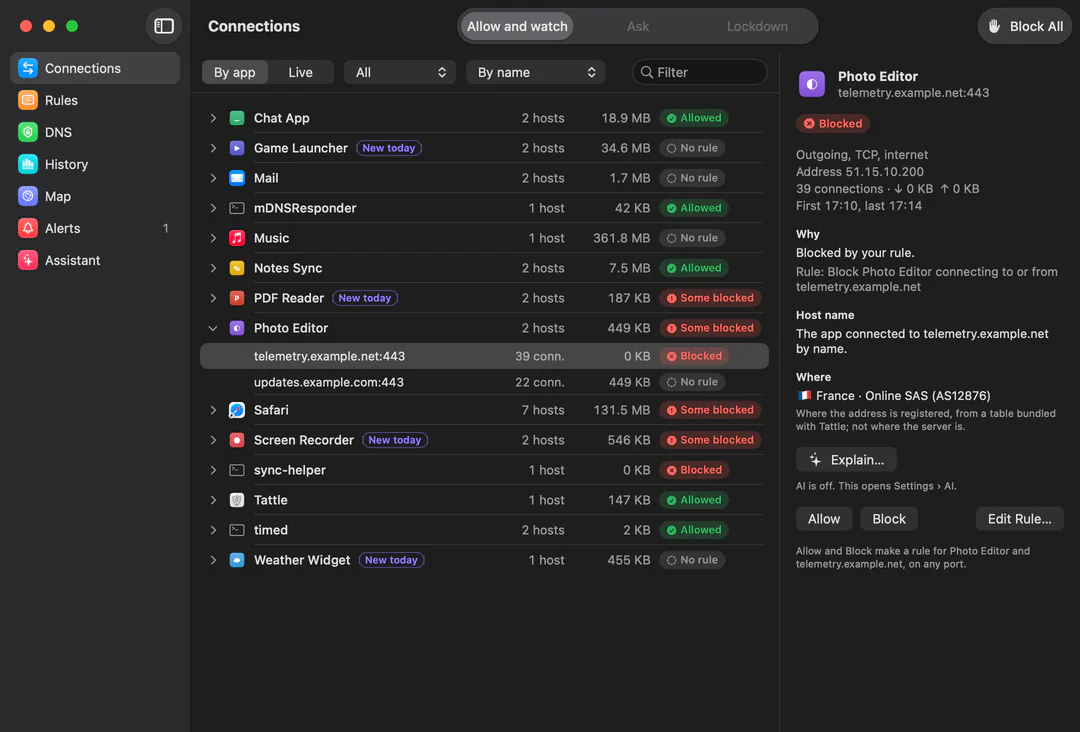
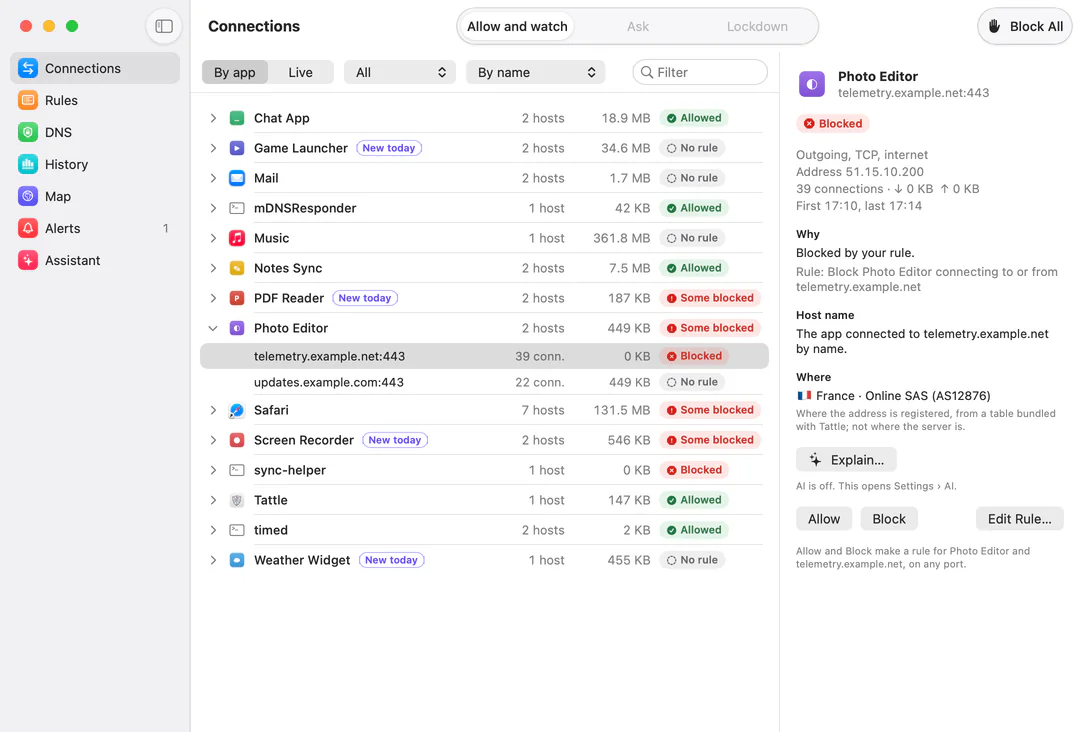
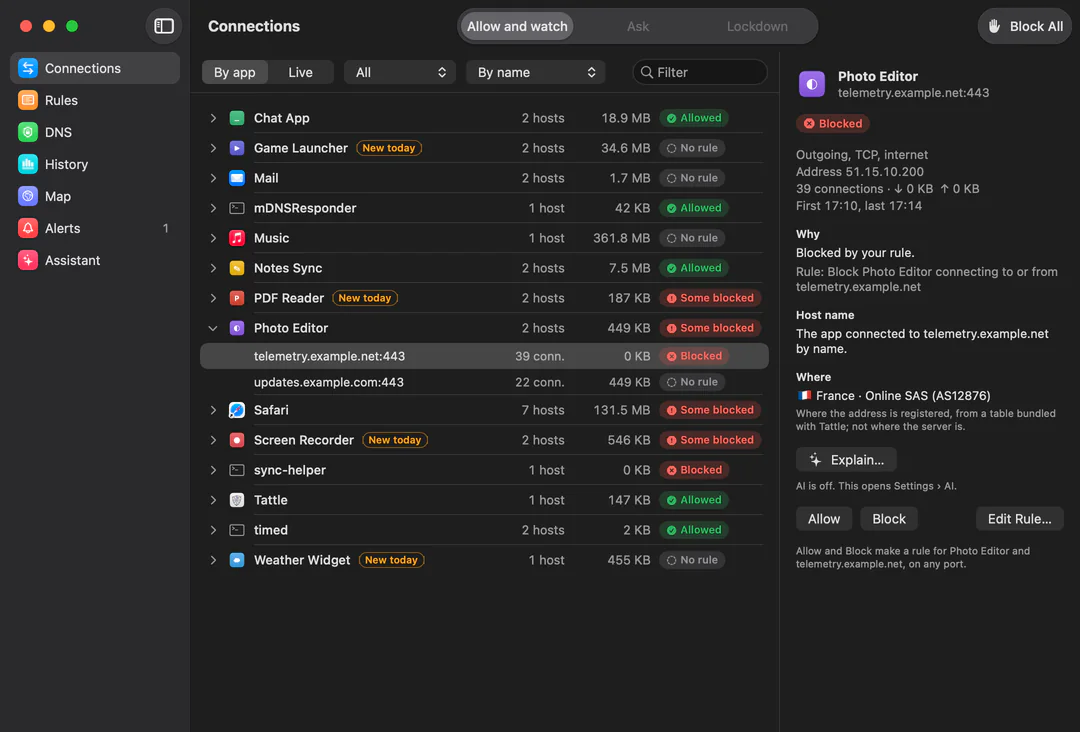
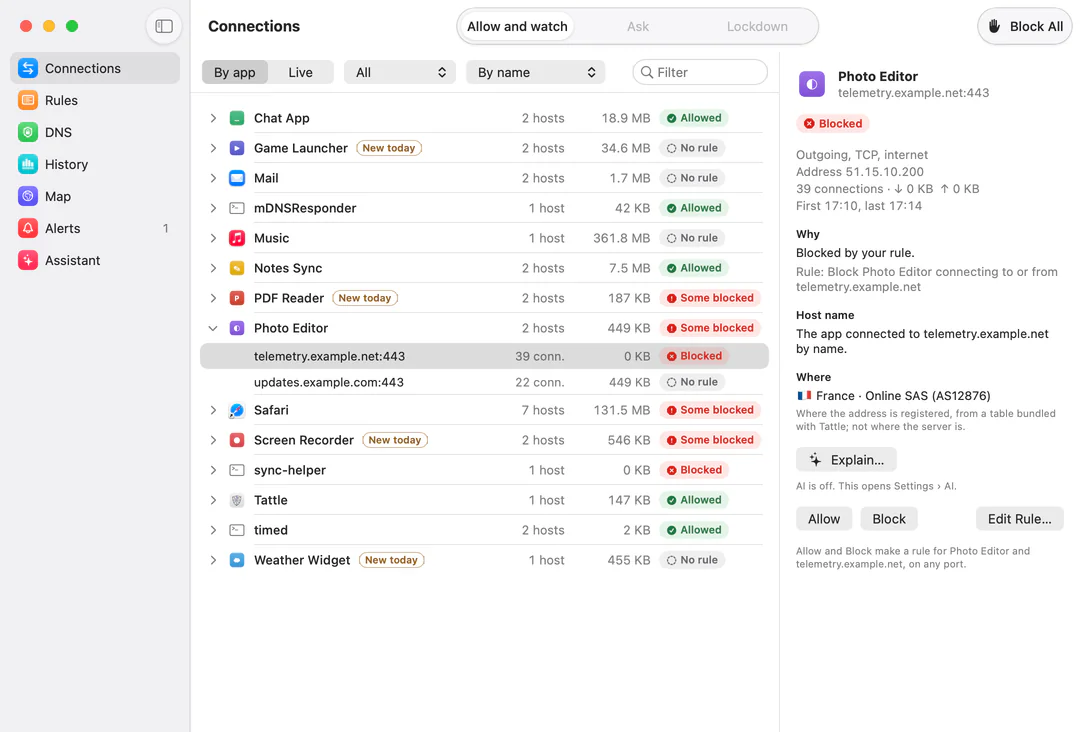
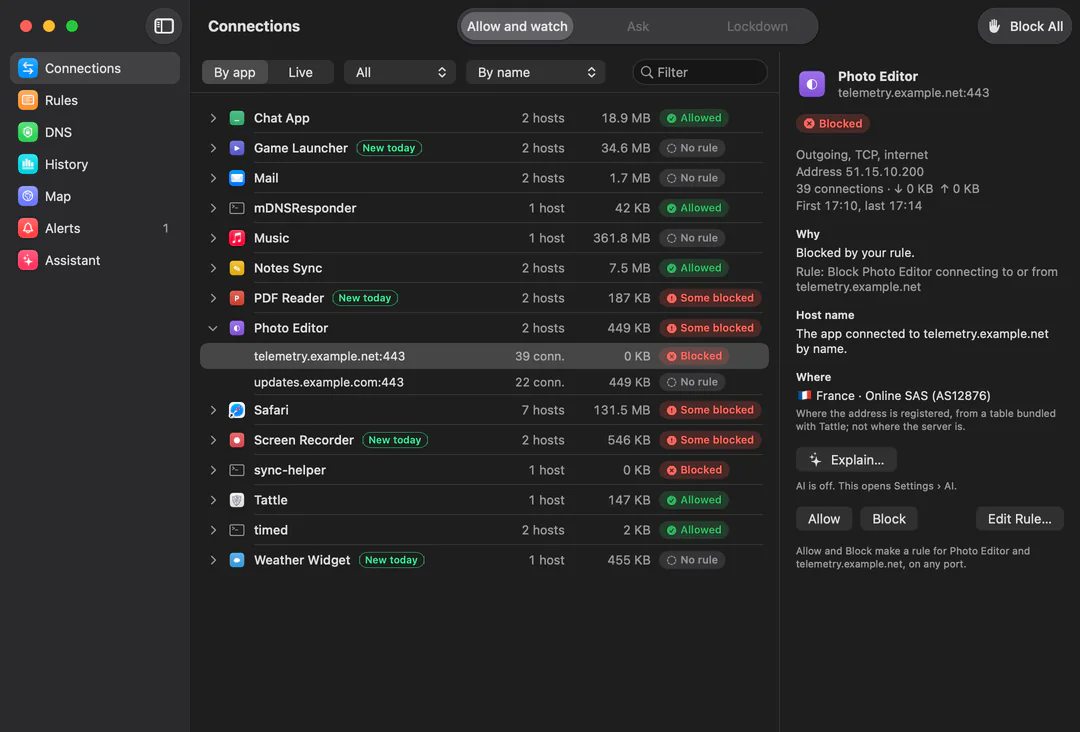
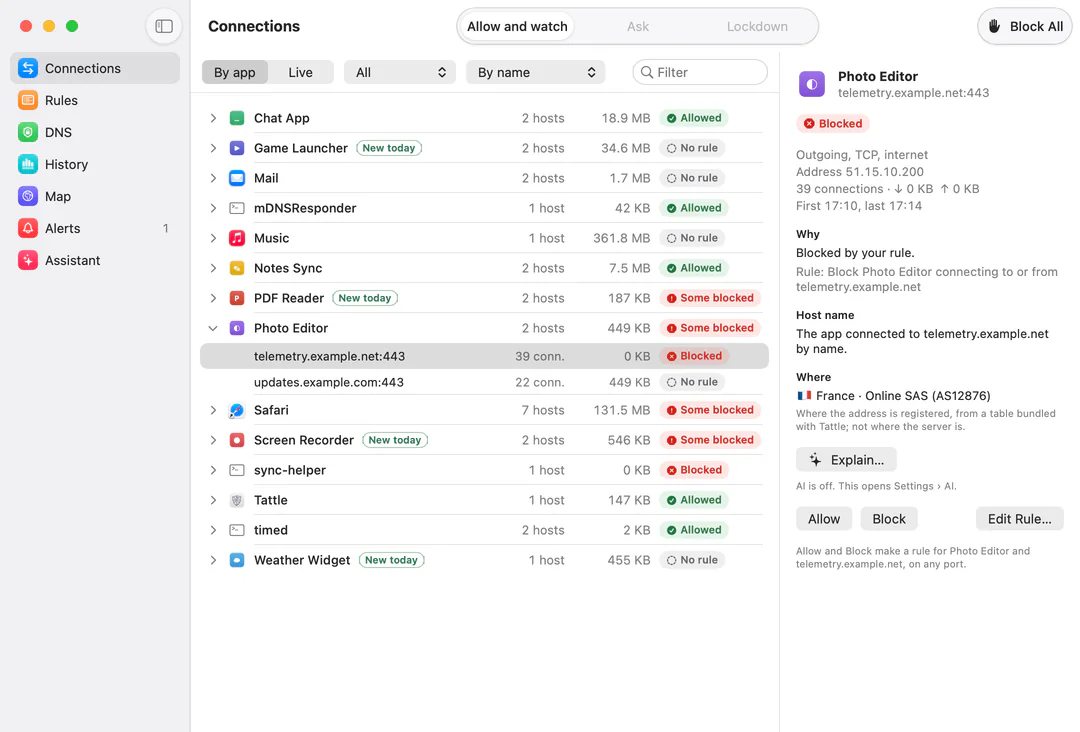
Connections lists every app that connected since Tattle started, with its hosts, the number of connections, the data, and a verdict: Allowed (by a rule), Blocked, No rule (let through by the mode), Waiting (for your answer) or Some blocked. Live shows connections as they happen. Select one and the pane beside it says why it got its verdict and where its host name came from; Allow and Block make a rule for that app and host on any port, and selecting an app offers the same for everything it does. “New today” marks apps and hosts Tattle hadn’t seen before today.
The pill
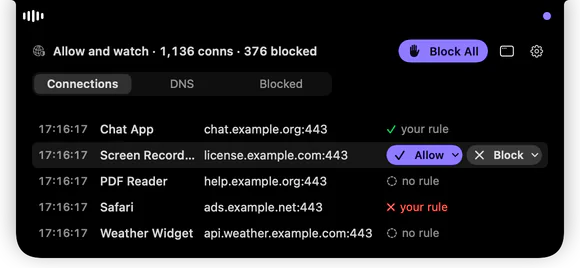
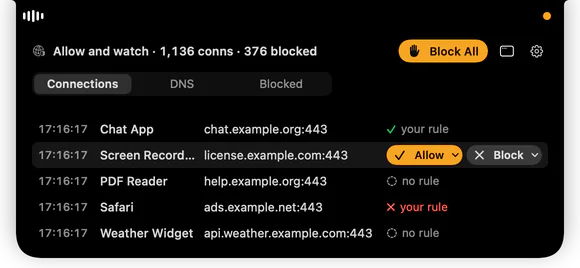
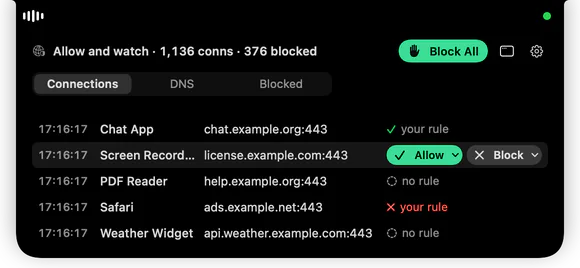
Point at the pill around the notch and it opens into a panel: the mode, the counts and Block All, then the newest connections, DNS lookups or blocked connections, five at a time; scroll for more, up to 50. Point at a row for Allow and Block: a click does that host (or domain, for a lookup), and the small arrow beside each offers the whole app. If another rule would still decide it the other way, the row says so and nothing changes. The list holds still while your pointer is on it and shows how many new rows wait above; click that count, or move away, to catch up. Click a row to open it in the main window. When something is blocked, the pill says so for a moment, grouping a burst into one line; Settings › Notch turns that off. On a Mac without a notch, the same panel hangs below the menu bar.
Modes
Allow and watch (the default) blocks nothing. Ask asks about connections no rule covers; a connection waits 30 seconds by default, then gets the default answer (allow, unless you change it). Lockdown blocks what no rule allows. Block All blocks everything, Essentials included. The modes, in detail.
Rules
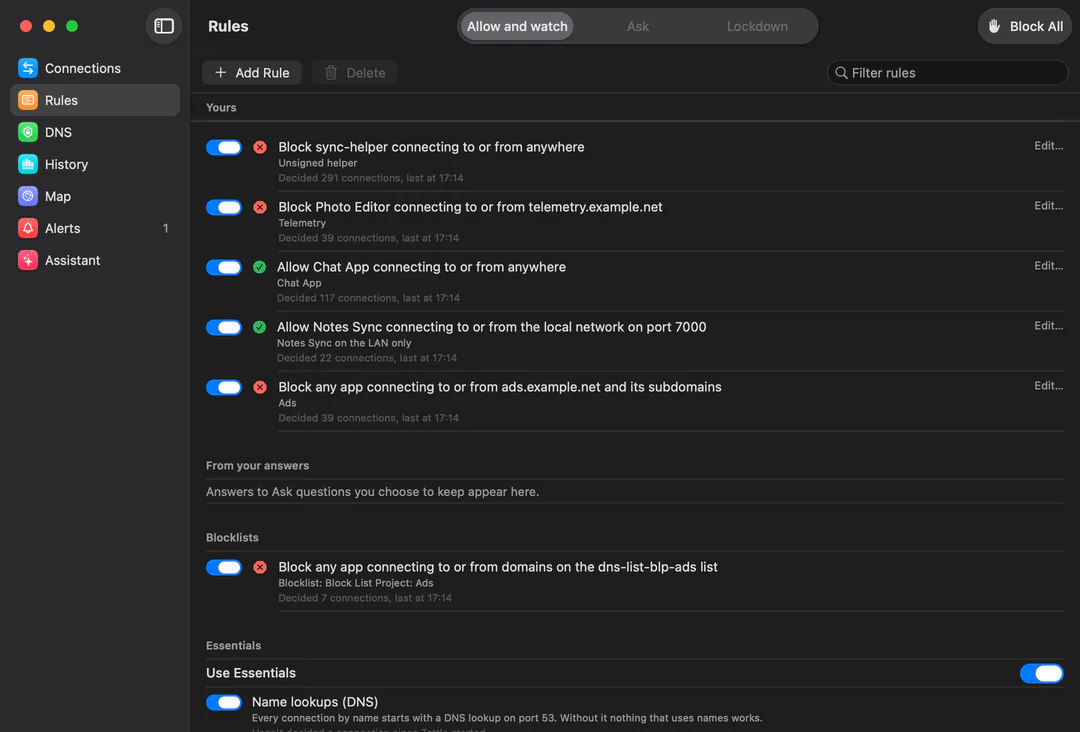
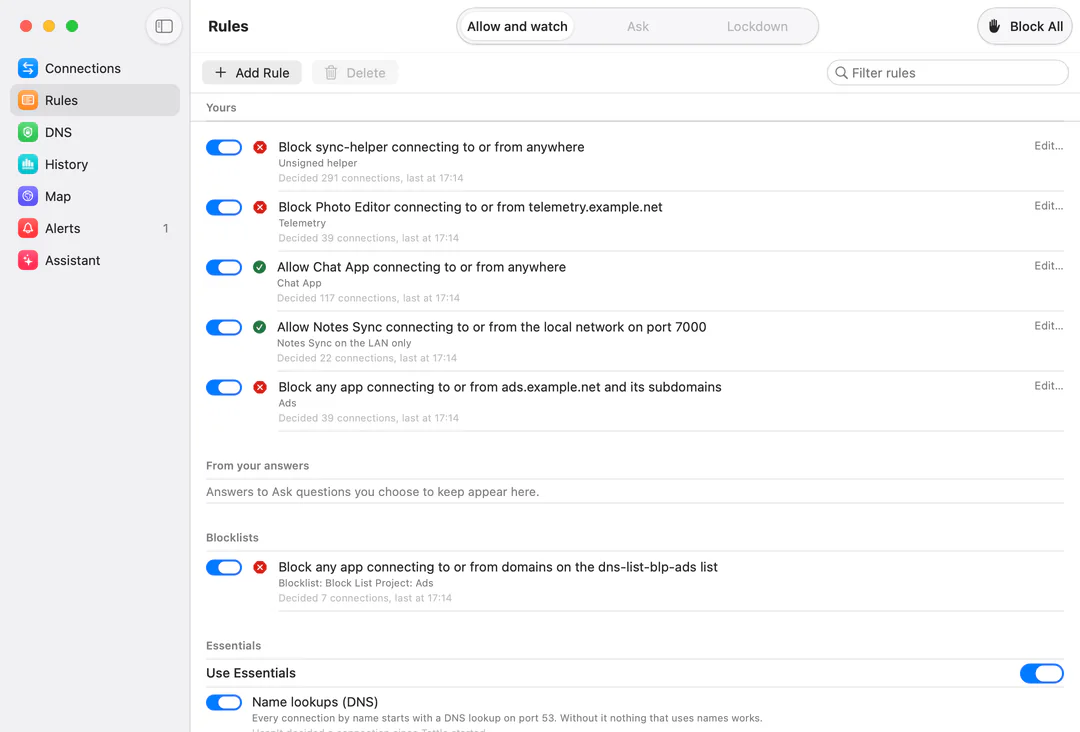
Rules lists yours, those made from your answers, blocklists and the Essentials, each as a sentence with how many connections it decided. Add or edit one to set the action, app, destination, port, protocol, direction, network and how long it lasts; switch any rule off without deleting it. When several match, the most specific wins: how Tattle chooses.
History and alerts
History shows connections, blocks and data per app and per host for today, 7 days, 30 days or all that is kept (30 days by default; change it in Settings › Firewall), with search and a chart by day. Alerts lists code-signature changes and apps opening an unusual number of connections, and, quietly, apps connecting for the first time.
Map
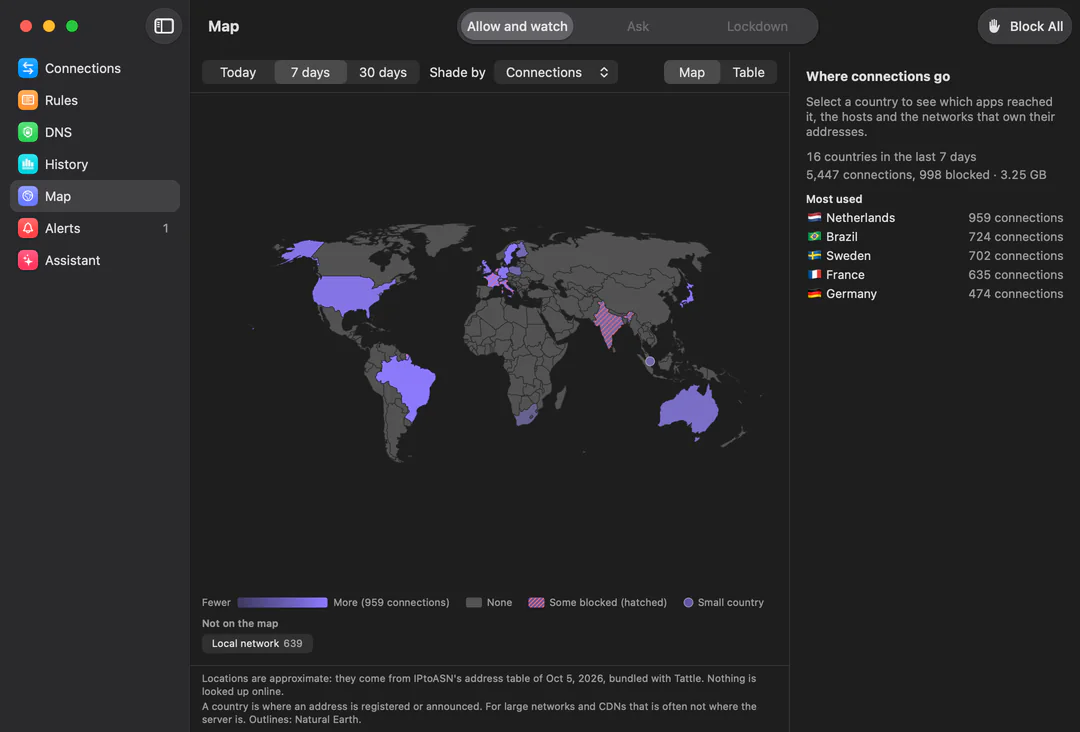
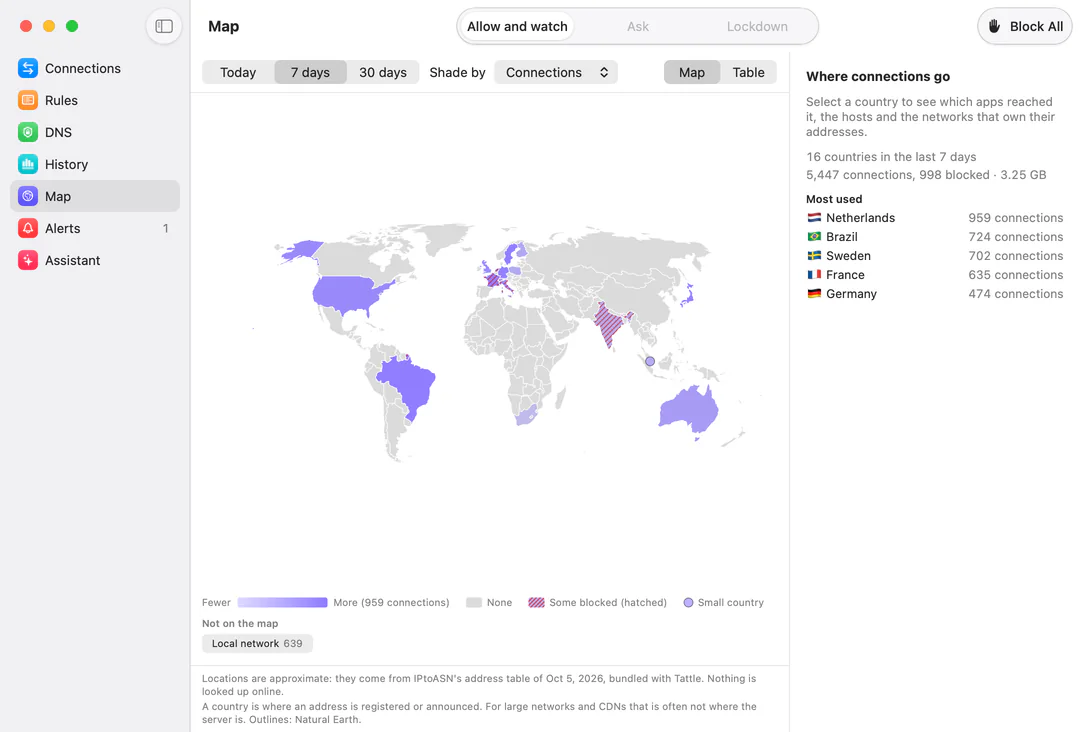
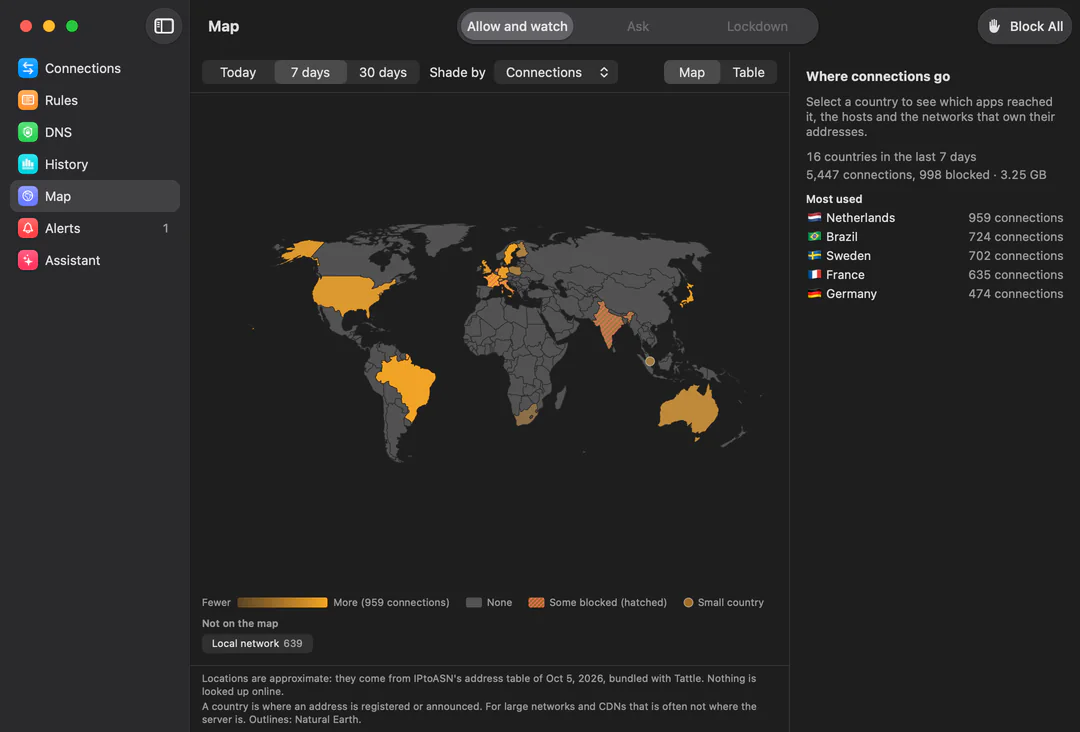
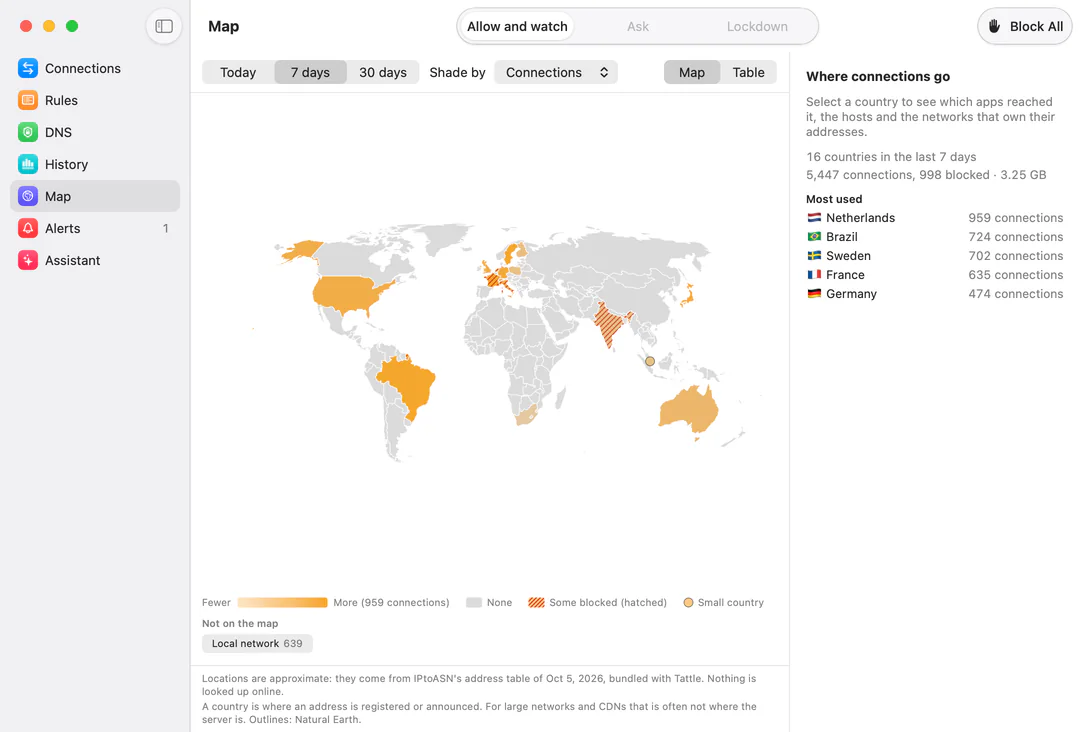
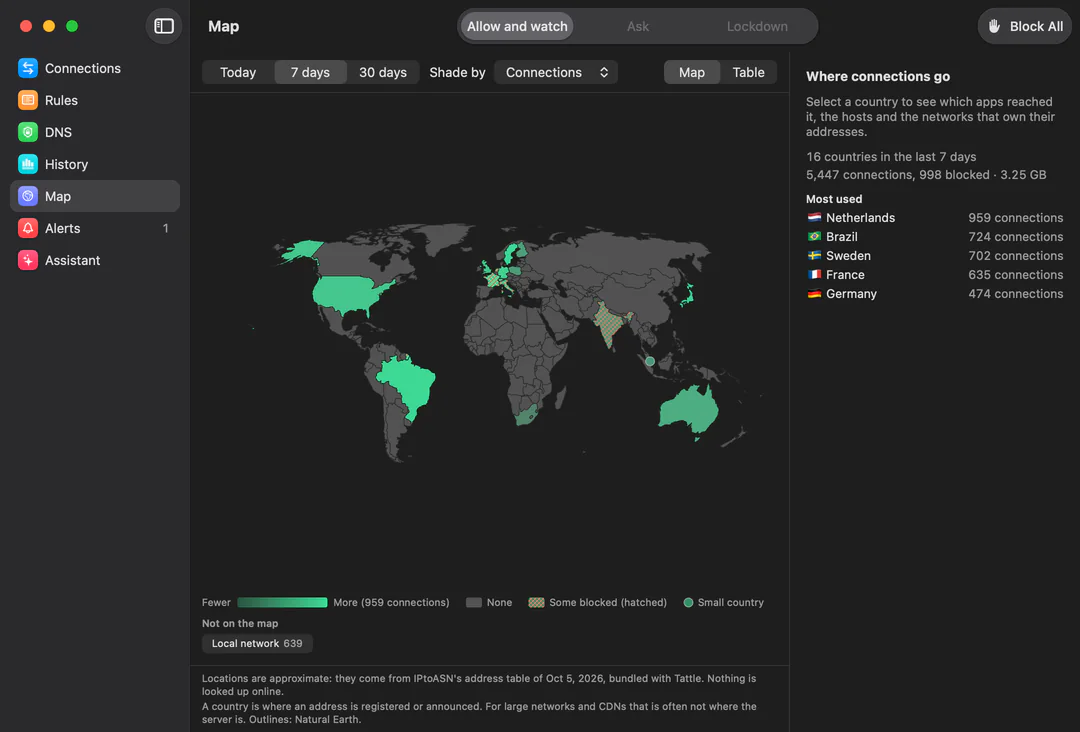
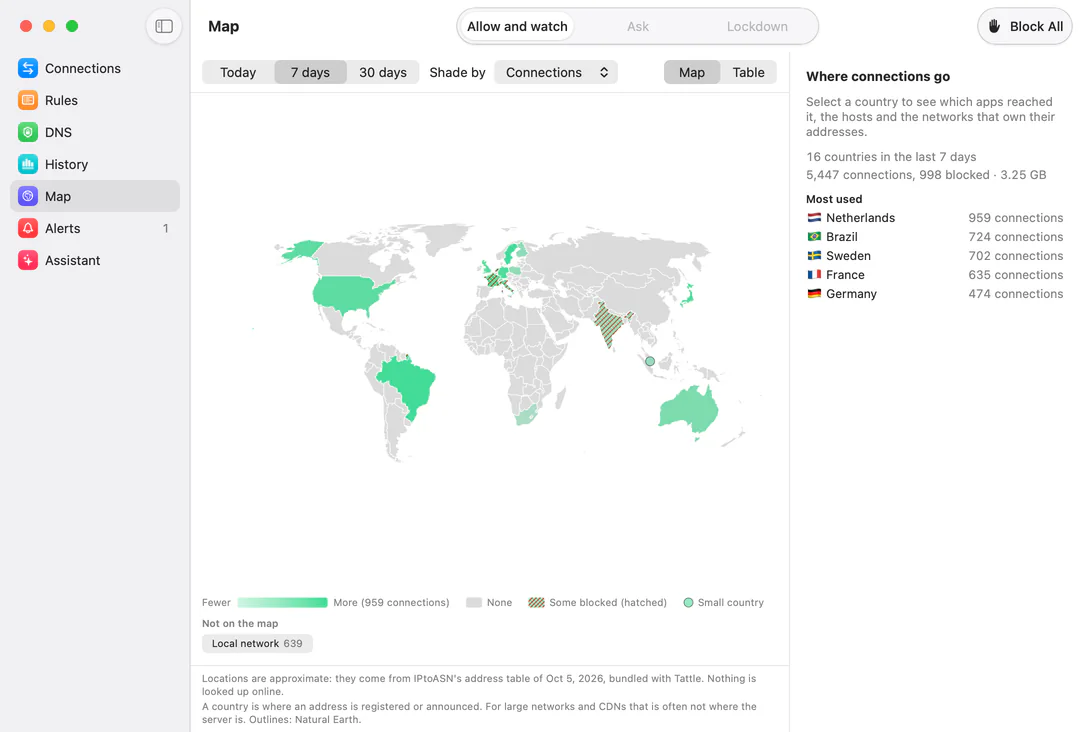
Map shades the countries your Mac’s connections went to (today, 7 days or 30 days) by connections, with blocked ones hatched; small countries are dots, and addresses on your local network are listed under the map. Select a country for the apps that reached it, its hosts and the networks that own their addresses; Table lists the same. Connections and History show the place too. The country and network owner come from an address table bundled with Tattle (IPtoASN; outlines from Natural Earth), so nothing is looked up online and the data changes only with updates. A country is where an address is registered, which for large networks and CDNs is often not where the server is.
Settings worth knowing
- Firewall: how long Ask waits and what happens if nobody answers, whether Essentials are on, and how long history is kept. Export your rules, mode and DNS settings to a file, or import them; the preview lists every change before it is applied.
- DNS and Blocklists: off by default; see DNS.
- Network Profiles: rules that apply only somewhere. A profile has one condition (a VPN is connected, any Wi-Fi, a Wi-Fi network you name, Ethernet, or none for the default), and profiles are tried in list order. macOS tells an app the name of a Wi-Fi network only with Location Services permission, so Tattle asks for it only when you set up a profile for a named network, after saying why; it never asks otherwise and never reads your location. Without the permission that condition simply doesn’t apply.
- Notch: the pill, where it shows, and whether it says so when something is blocked.
- AI: off by default; see the assistant.
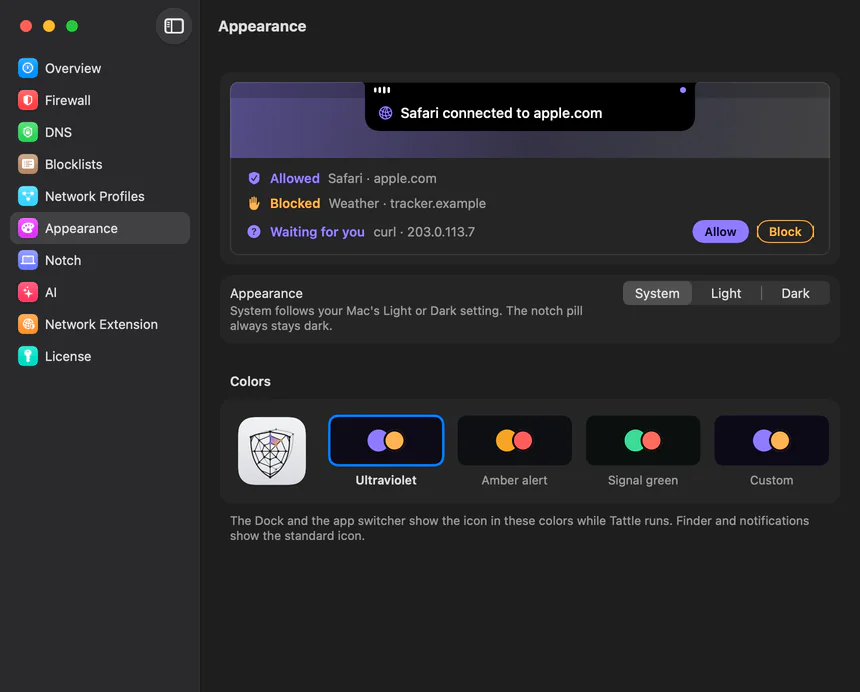
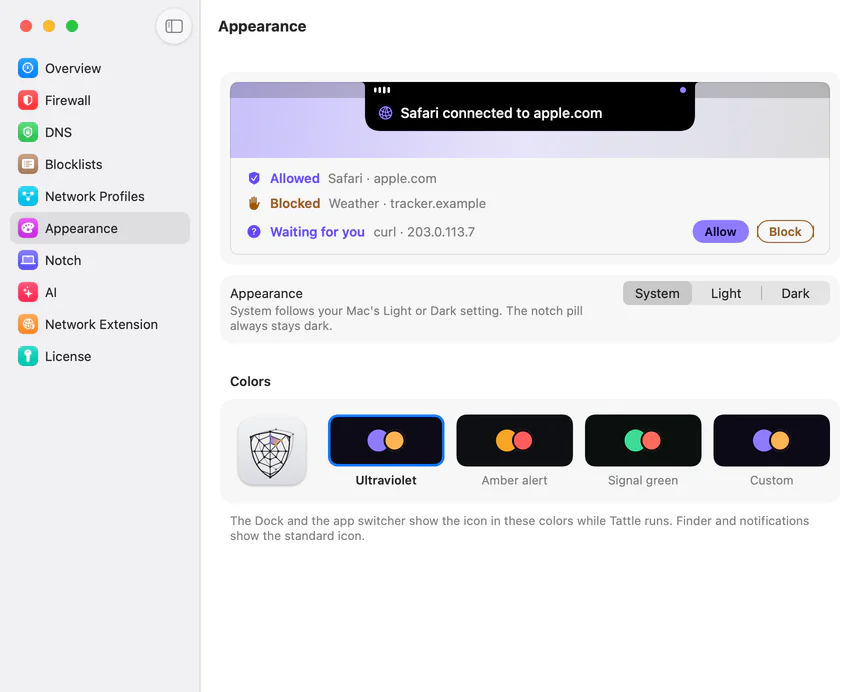
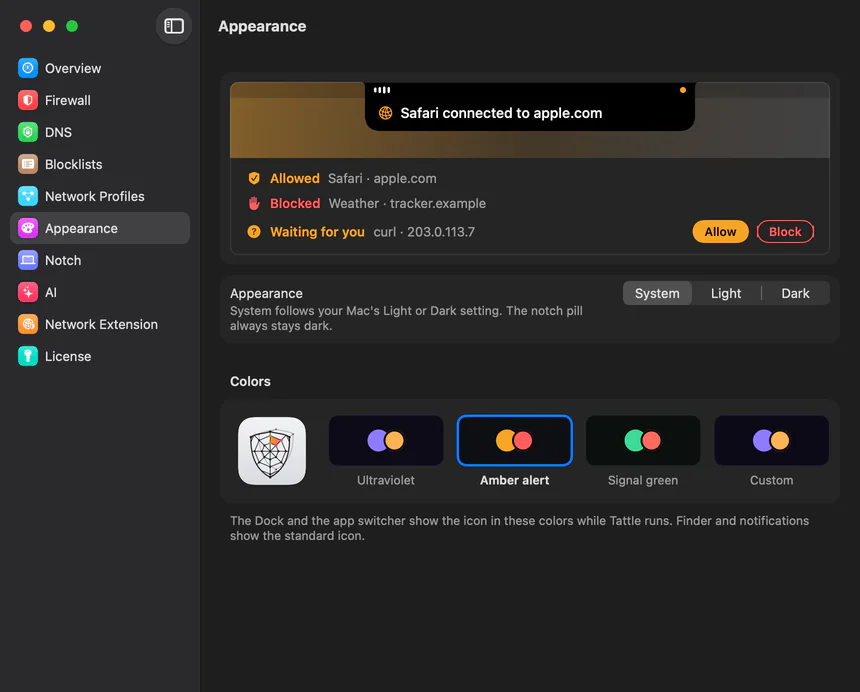
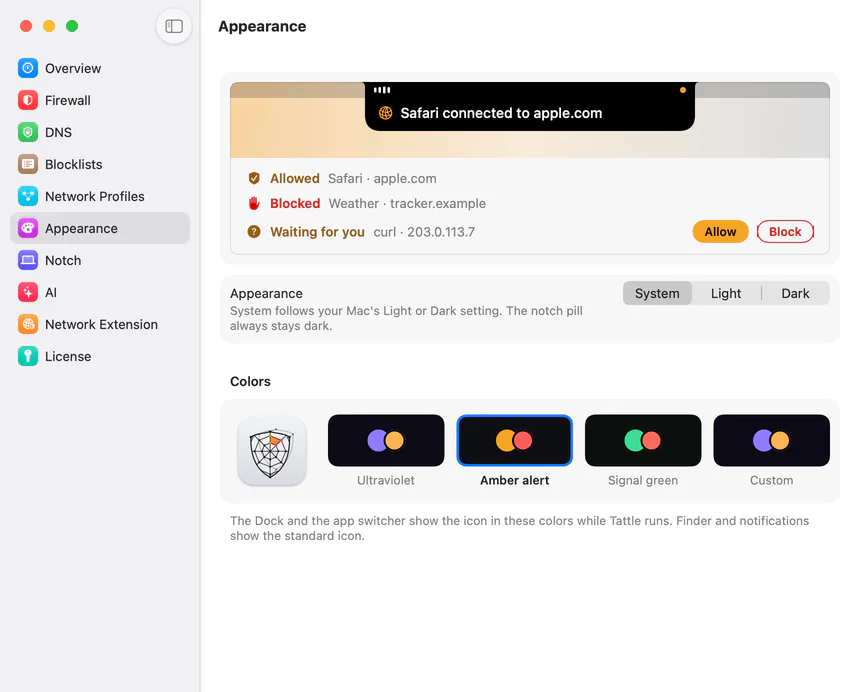
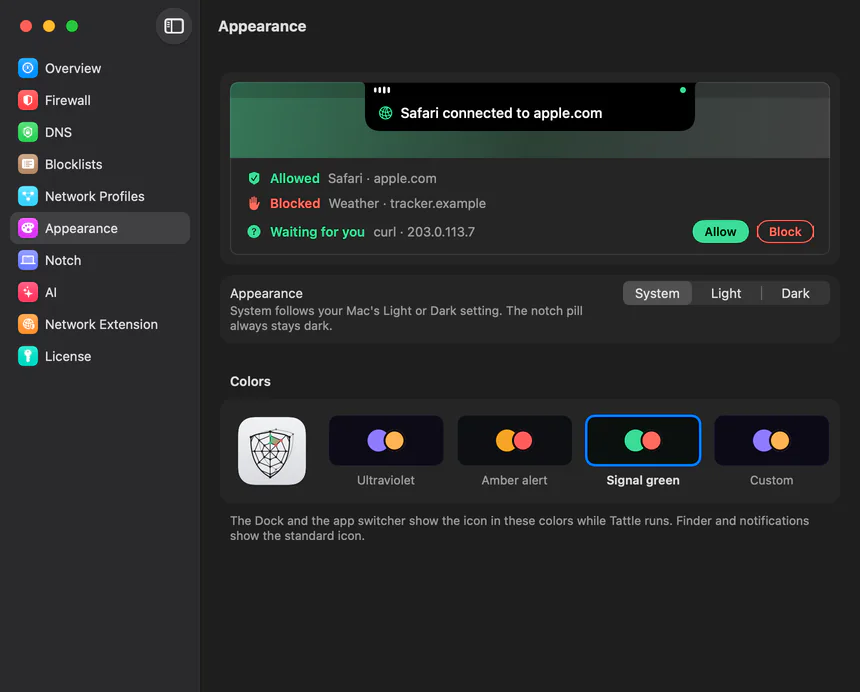
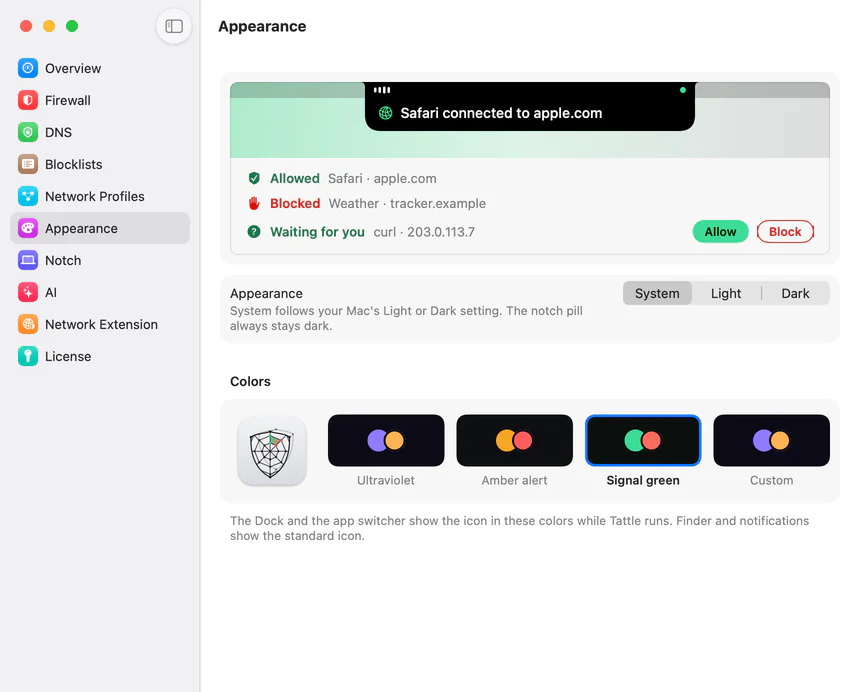
- Appearance: System, Light or Dark, and a palette (Ultraviolet, Amber alert, Signal green, or your own colours). The Dock and the app switcher show the app icon in those colours while Tattle runs. The home page has the same controls, working.
DNS
DNS is off until you turn it on. In Settings › DNS, Tattle’s DNS proxy sends your Mac’s lookups to an encrypted resolver you choose (DNS over HTTPS or DNS over TLS): presets for well-known public resolvers, presets for services that give you a personal profile (enter your own ID), or a custom address. The simple system mode makes a profile you install in System Settings instead; Tattle doesn’t see lookups in that mode. The main window’s DNS section shows who is answering, a log of lookups kept on your Mac for 7 days, and the most looked-up and most blocked names; Block Domain and Allow Domain make a rule for every app.
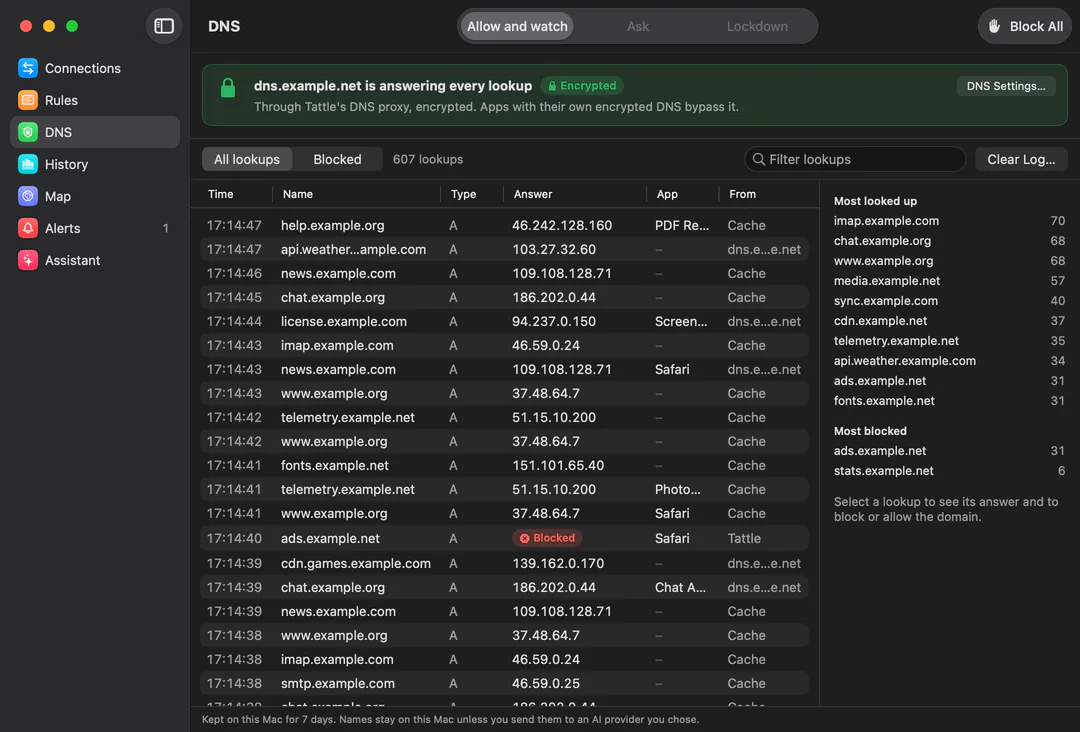
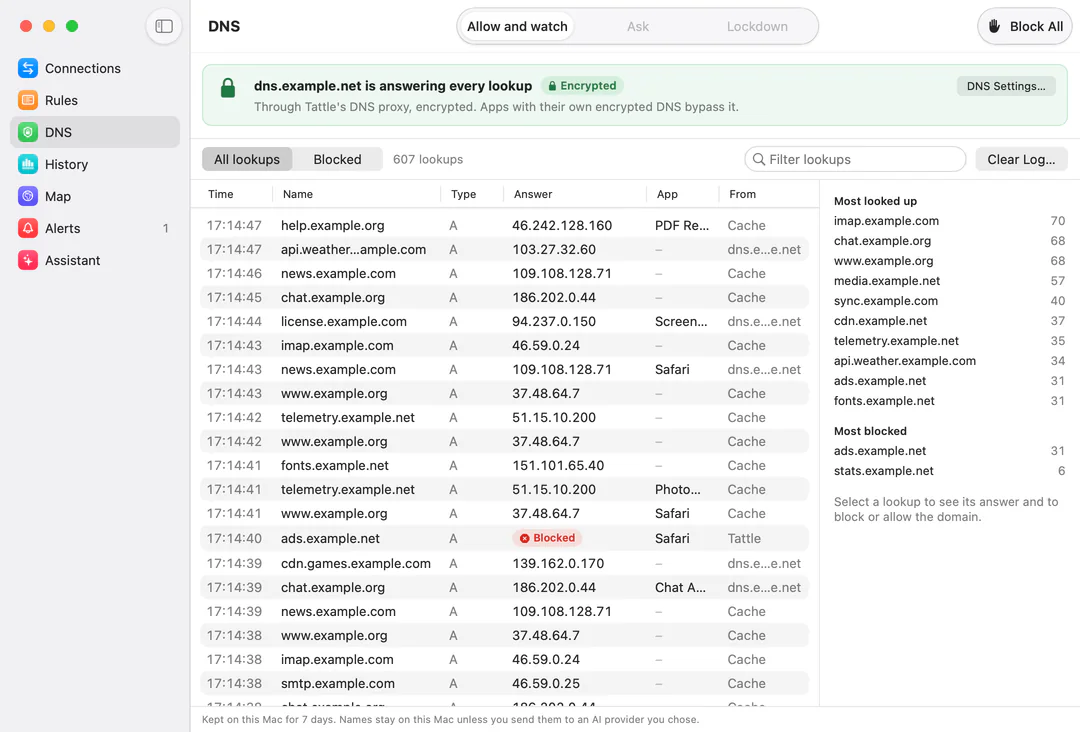
While a VPN is connected, macOS gives its DNS precedence for the lookups it handles, and the DNS section says so. Apps that do their own encrypted DNS bypass Tattle’s proxy. DNS over QUIC isn’t supported. Setting up encrypted DNS.
The assistant
The assistant is off until you pick a provider in Settings › AI: a model on your Mac, a server you run, or a service you have your own key for. It can explain a connection, write summaries, suggest rules and answer questions about your history. It sends only connection details, and before anything goes to a provider off your Mac, Tattle shows exactly what will be sent and waits for you. Suggested rules do nothing until you accept them. What it sends, in detail.
Updates
Tattle checks for updates on its own and asks before installing one. You can check by hand from its menu, and turn automatic checks off in Settings. Updates are signed: the app installs only builds signed by us.
Your license
| Edition | Macs at once | Versions covered | Price (USD) |
|---|---|---|---|
| Personal, this version | 3 | This version, plus the next if it arrives within a year | $15 |
| Business, this version | 10 | This version, plus the next if it arrives within a year | $35 |
| Personal, lifetime updates | 3 | Every version | $60 |
| Business, lifetime updates | 10 | Every version | $100 |
Trying it first
Every new Mac gets 14 days with everything included, no key needed. After that it asks for a license.
How versions work
You buy a version, and it’s yours to keep with every update to it. A version lasts at least a year; a new version comes when a new macOS brings features that warrant one. If the next version arrives within a year of your purchase, your license covers it too. Lifetime covers every version. An older version keeps working with your key whatever comes later.
Activating a Mac
Enter your key in the app. Keys look like TAT-XXXXX-XXXXX-XXXXX-XXXXX; capitals and dashes are optional, and an O or an I typed by mistake is read as 0 or 1. Activating needs an internet connection; activating the same Mac again never uses a second install.
Working offline
Your license is verified on your Mac. The app checks in with the license service now and then when it’s online, and keeps working through long stretches without a connection.
Moving to another Mac
Deactivate the old Mac from the app, or unregister it on the account page (useful when the old Mac is gone). The install is free immediately; activate the new Mac with the same key.
Lost your key?
Keys are stored only as hashes, so nobody can look yours up. If you added a recovery email on the account page, use Lost your key? there and we’ll email you a replacement key. The old key stops working; your activated Macs stay activated.
Never added a recovery email? It may still be recoverable: contact Tech on Tires, LLC through the contact page at on.tires with the date you bought it and your payment receipt (its receipt or order number). Never send card numbers or other payment details. Adding a recovery email now is the quickest way to avoid this.
FAQ
Does it work on Intel Macs or older macOS versions?
No. It needs a Mac with Apple silicon running macOS 26 or later.
macOS says the extension was blocked. What now?
That’s macOS asking for your approval. Make sure Tattle is in your Applications folder, then turn it on in System Settings › General › Login Items & Extensions, under Network Extensions. Then allow it to filter network content when macOS asks. Finish Setup… in Tattle’s menu walks you through it.
Will Ask mode break things while I’m away?
No. A connection waits for your answer for 30 seconds by default, then gets the default answer (allow, unless you change it), and the question stays open so your answer decides next time. Connections that can’t wait get the default at once.
What does the account page show?
Your plan, how many installs are in use, and each Mac by model name with when it was activated and last seen. You can unregister any of them there.
Can I see what the license service stores?
Yes, all of it is listed on the privacy page.
Guides
Step-by-step answers to the questions people ask most, one question to a page.